What are the mobile game controls used in Star Raiders Scratch?
Estimated Reading Time: 2 MinutesMobile Controls
- Spin – Play a round (=spins the reels)

- Reveal All – Reveal all symbols

- Auto-Bet – Opens Auto-bet settings

- Pay Table – Opens the pay table pages

- Home/Lobby – Exit game to home/lobby of host

- Settings – Opens Settings page of the game

- Bet – Display the stake for the current round. When clicked, opens the bet value dropbox.
- Balance – Display player balance

- Win – Display current round total win
- Clock – Display time of current player session
All game settings and info pages such as help and paytable are accessed by clicking the settings icon.
Setting Auto-Bet - Mobile
The player needs to press the auto-bet floating icon, right above the spin icon, in order to enter the auto-bet settings page.
Auto-bet settings can also be reached through the game settings (Settings=>Auto-bet)
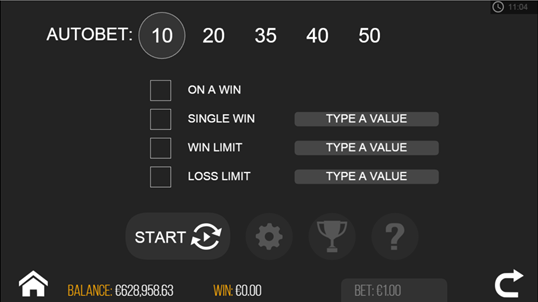
Game Auto-bet screen
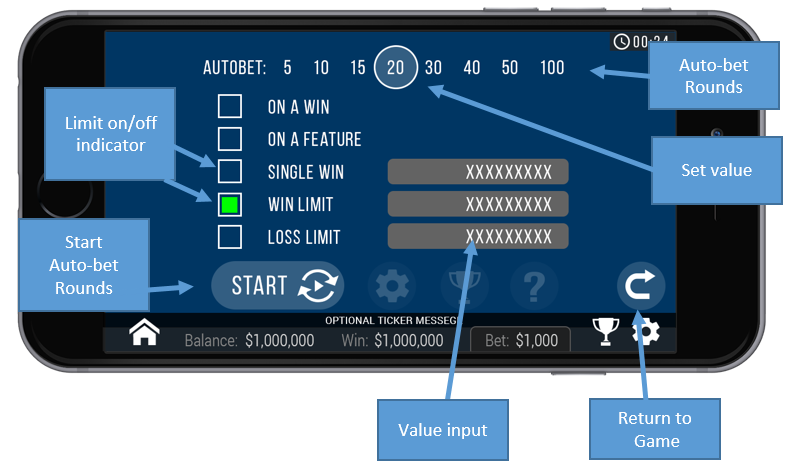
Generic Auto-bet scheme
Auto-Bets Limits:
- Loss Limit (numeric value) - Pauses the auto bet function (see below) when the total loss of the user so far (SUM(bet)-SUM(win)) >= (numeric value)
- Single Win (numeric value) - Pauses the auto bet function (see below) when a single win payout >= (numeric value) or more.
- Win Limit (numeric value) - Pauses the auto bet function (see below) when the total Win of the user so far (SUM(bet)-SUM(win)) <= (numeric value)
- Stop on Win - When any single round results with a win of any size, auto-bet deactivates. Free spins count as one round, so if a main ticket didn't win any line but did win free spins, and one of the free spins wins any amount, the round counts as a win.
- Each limit can be turned on or off by clicking on the onoff button next to it.
- To set the number of auto-bets rounds, the player picks the desired value from the top list of optional values by clicking on the desired value. The selection mark is set on the last settings.
- When a limit is reached and the Auto-bet stops, a message pops in the center of the screen reading according to the limit:
- "LOSS LIMIT REACHED"
- "WIN LIMIT REACHED"
- "WIN REACHED"
- "REACHED A WIN"
The message will fade out after 5 sec or on any tapping (screen or button pressed)
To exit the auto bet panel, the player can:
- Start the auto-bet rounds by clicking “START”.
- Exit auto-bet completely by clicking the “return to game” button on the right.
Auto-Bet Active View:
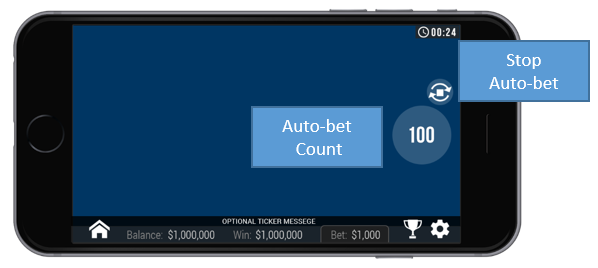
When the auto-bet is activated, the player is returned to the game view.
The spin button is replaced by a counter displaying the remaining auto-bet rounds. The auto-bet button is changed into the “Stop auto-bet” icon.
Clicking on the “Stop auto-bet” or on the counter, stops the auto bet and returns to regular game mode.
Game Settings Page
- Setting sound – Ambiance Sound – enabling or disabling background music.
- Setting sound –Sound effects – enabling or disabling sound effects.
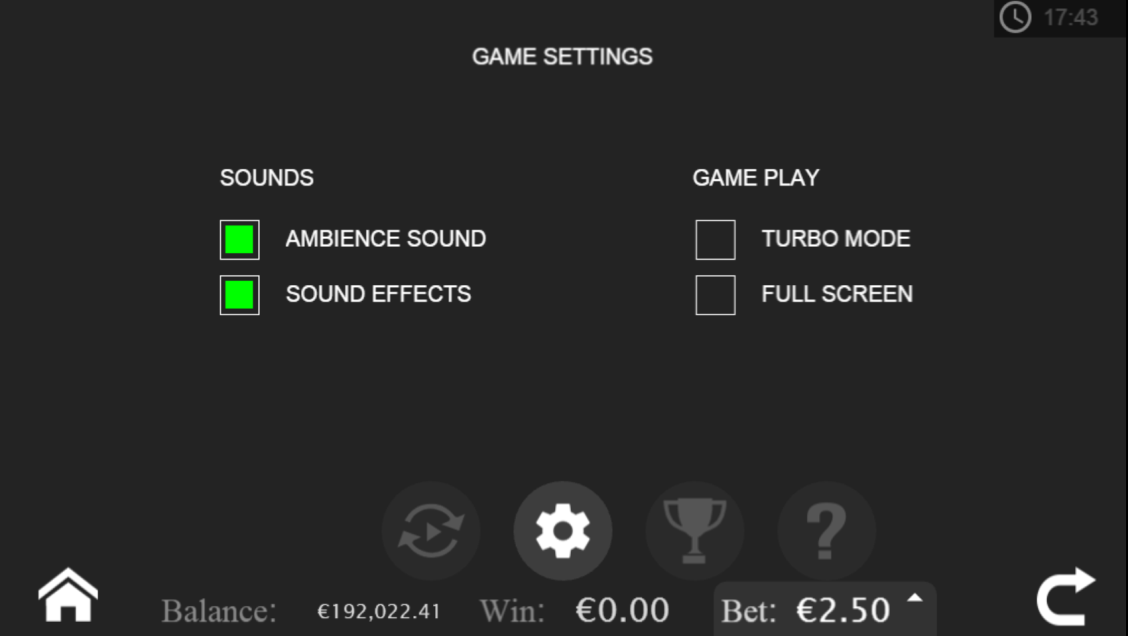
Generic game setting may change from game to game or between platforms